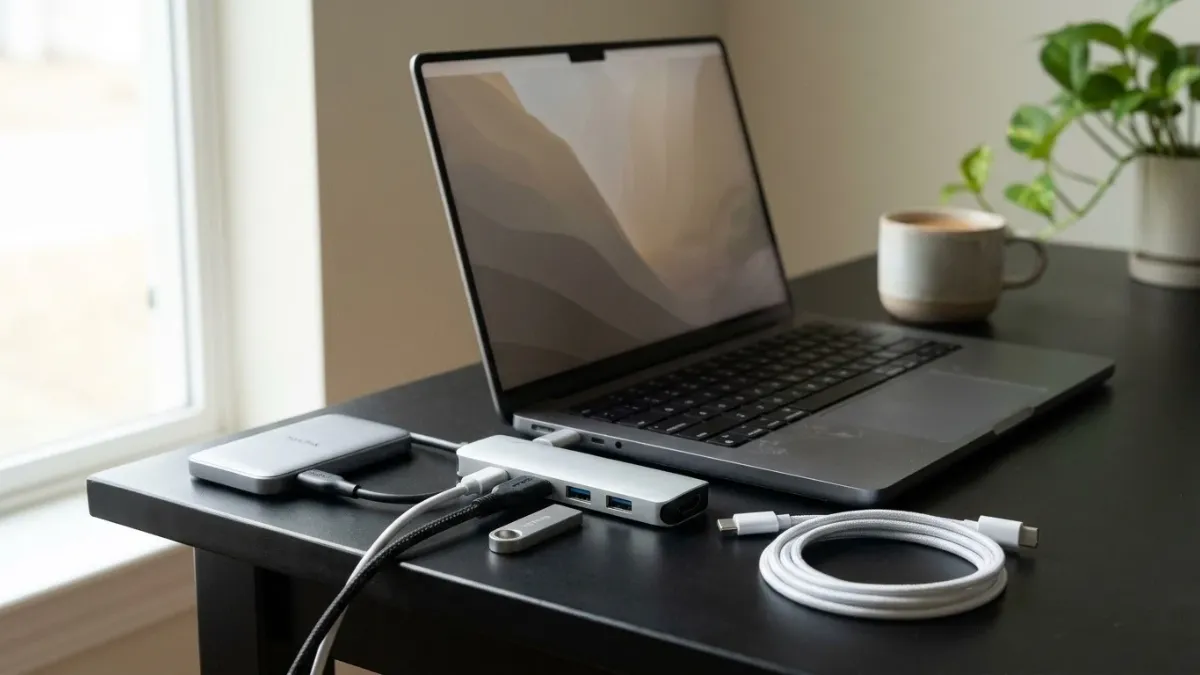
A MacBook Pro is a powerful laptop for work, creative projects, entertainment, and everyday productivity. However, even with its premium design, you may still need additional ports to connect external monitors, USB drives, memory cards, keyboards, and other accessories. That’s where a USB-C hub becomes useful.
Finding the best USB-C hub for MacBook Pro depends on how you use your laptop. Some users need a compact adapter for travel, while others want a multiport hub for a complete desktop workstation. Important features include HDMI resolution, data transfer speeds, Power Delivery, Ethernet connectivity, and memory card support.
In this guide, we’ll explore some popular USB-C hubs, compare their features, and explain how to choose the right option for your MacBook Pro.
1. Plugable 9-in-1 USB-C Hub – Best Overall USB-C Hub for MacBook Pro
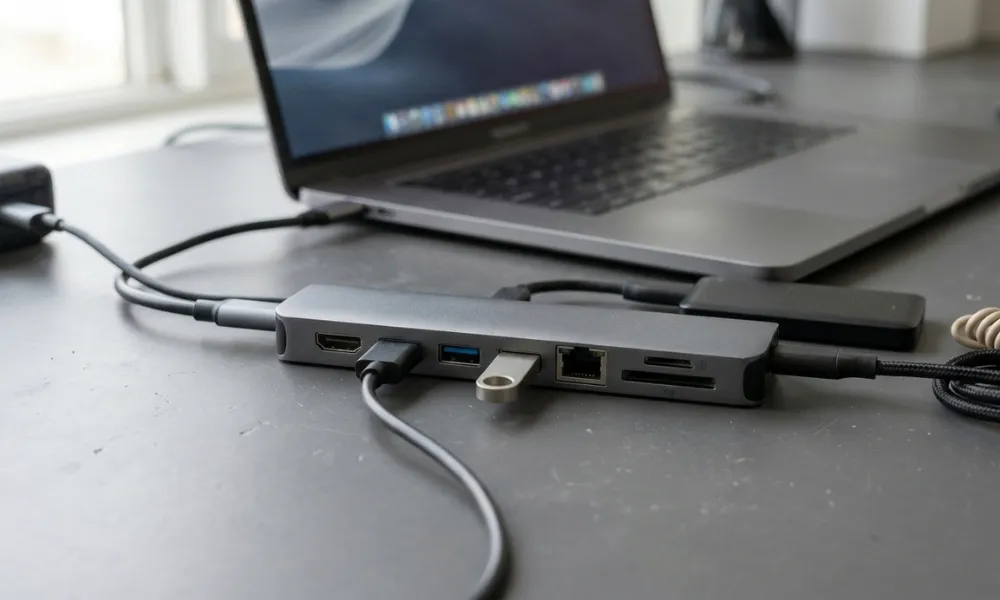
The Plugable 9-in-1 USB-C Hub is a versatile option for MacBook Pro owners who want several useful connections in one compact accessory. It combines display connectivity, USB ports, memory card readers, and Ethernet in a single device.
It includes HDMI, USB-A, USB-C, SD, microSD, and Ethernet connections. Its HDMI output supports 4K resolution at 60Hz, making it suitable for connecting a compatible external monitor. The hub also offers up to 125W of advertised pass-through power, although the actual power delivered to your Mac depends on the charger and connected devices.
This hub is particularly useful for professionals who regularly connect external storage, monitors, and wired network connections.
Key Features:
- 9-in-1 connectivity
- HDMI output with 4K at 60Hz support
- USB-A and USB-C data ports
- SD and microSD card readers
- Ethernet connectivity
- Up to 125W pass-through power
Best For: Professionals who need a versatile hub for everyday office work and external devices.
2. Anker 555 8-in-1 USB-C Hub – Best for Everyday Use

The Anker 555 8-in-1 USB-C Hub is a practical choice for people who want a balance between portability and connectivity. Its compact design makes it easy to carry in a laptop bag, while its range of ports supports common work and entertainment setups.
It provides HDMI connectivity for a 4K external display at 60Hz, two USB-A ports, two USB-C connections, Ethernet, and SD and microSD card readers. It also supports up to 85W of power delivery to a connected laptop when paired with a suitable charger.
The hub can become warm during use, particularly when several accessories are connected. This is worth considering if you plan to use it throughout a long working day.
Key Features:
- 8-in-1 port selection
- 4K at 60Hz HDMI output
- Two USB-A ports
- Two USB-C connections
- Gigabit Ethernet
- SD and microSD card readers
- Up to 85W pass-through charging
Best For: Students, remote workers, and everyday MacBook Pro users.
3. Satechi Pro Hub Slim – Best Premium Design for MacBook Pro
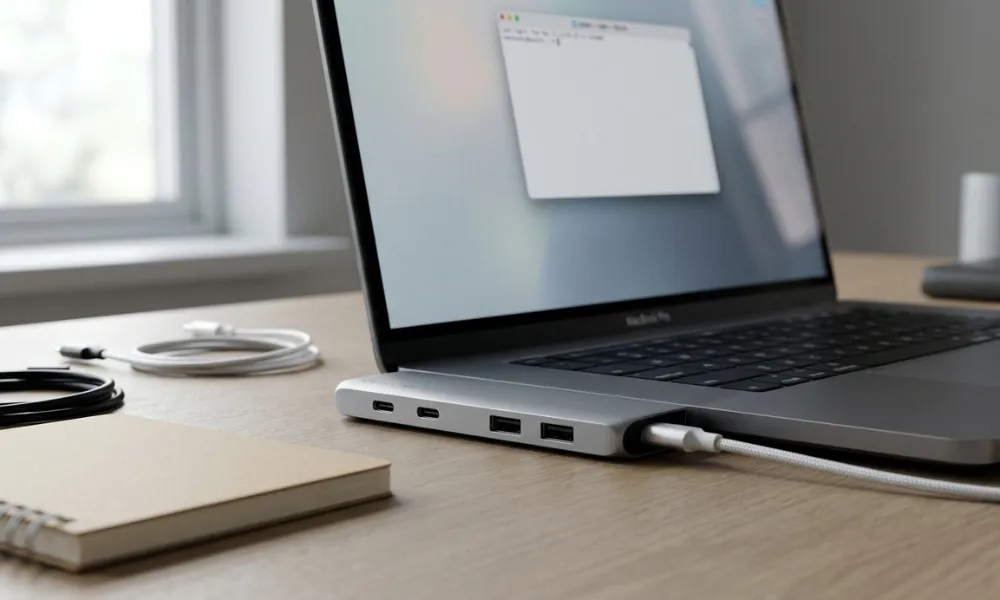
If appearance and a clean desk setup matter to you, the Satechi Pro Hub Slim is worth considering. Its slim aluminum construction complements the design of many MacBook models and provides useful connectivity without adding a large docking station to your workspace.
The hub uses a USB4 connection with data speeds of up to 40Gbps. It includes HDMI, USB-A, USB-C, SD, and microSD connections. It can also support a high-resolution display through its USB4 connection, depending on the MacBook and monitor being used.
One important detail is its physical design: it connects through two adjacent Thunderbolt ports on compatible MacBooks. This makes it less flexible than a hub with a separate cable.
Key Features:
- USB4 connectivity up to 40Gbps
- HDMI output supporting up to 4K at 60Hz
- Additional USB-A and USB-C ports
- SD and microSD card readers
- Up to 100W advertised pass-through power
- Slim aluminum construction
Best For: MacBook Pro users who want a premium-looking accessory and faster USB4 connectivity.
4. Satechi OntheGo 7-in-1 Multiport Adapter – Best Portable USB-C Hub
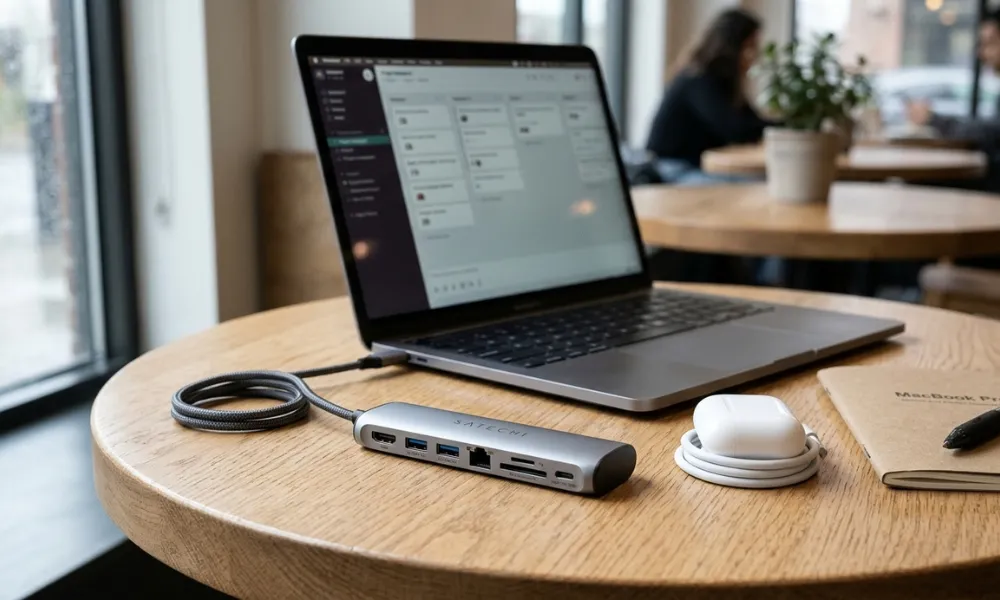
People who frequently travel with their MacBook Pro may prefer a lightweight hub that is easy to pack. The Satechi OntheGo 7-in-1 Multiport Adapter is designed with portability in mind.
It features a compact design and an integrated coiled USB-C cable. Its connections include HDMI, USB-A, USB-C power delivery, Ethernet, and SD and microSD card readers.
The HDMI connection supports 4K at 60Hz, while the USB-C data connection supports speeds of up to 10Gbps. Its magnetic design also makes it convenient to keep the cable organized when the adapter is not in use.
Although it is not intended to replace a full desktop docking station, it provides enough connections for many everyday tasks.
Key Features:
- 7-in-1 connectivity
- Compact and travel-friendly design
- HDMI with 4K at 60Hz support
- Gigabit Ethernet
- USB-A and USB-C connections
- SD and microSD card readers
- Up to 80W pass-through charging
Best For: Travelers, students, and people who work from different locations.
5. Anker 565 11-in-1 USB-C Hub – Best for Multiple Connectivity Options
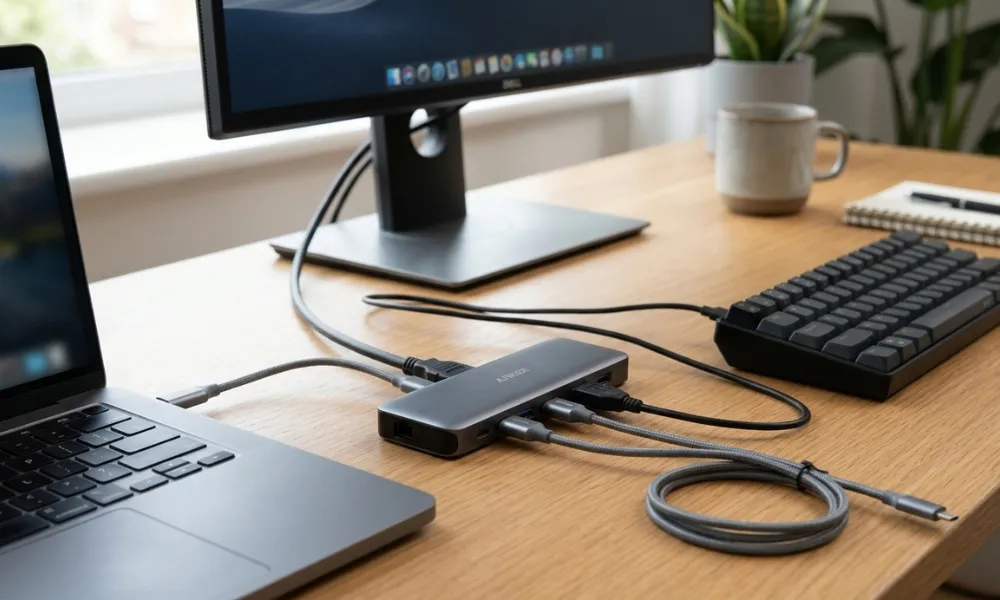
The Anker 565 11-in-1 USB-C Hub is another option for people who regularly connect several accessories to their MacBook Pro. Its larger port selection makes it useful for office desks and more involved productivity setups. For developers and tech enthusiasts looking to improve their knowledge alongside their workspace, exploring these best programming books can also be worthwhile.
It offers HDMI and DisplayPort connections, USB-A and USB-C ports, Ethernet, memory card readers, and an audio jack. This variety makes it easier to connect older accessories alongside newer devices.
The hub supports a 4K external display at 60Hz. It can connect two displays on supported Mac setups, but Mac compatibility and display limitations mean the two external screens may mirror rather than operate as separate extended displays.
Key Features:
- 11-in-1 connectivity
- HDMI and DisplayPort
- USB-A and USB-C ports
- Gigabit Ethernet
- SD and microSD card readers
- Audio connection
- 4K at 60Hz display support
Best For: Office workers who need several different connection types in one accessory.
How to Choose the Best USB-C Hub for MacBook Pro
Before purchasing a USB-C hub, consider the accessories you use regularly and the features your MacBook actually supports. A hub with many ports is not automatically the best choice if you only need a few connections. If photo editing is part of your workflow, choosing the right photo editing software is another important step toward building an efficient creative setup.
1. Check the Number and Type of Ports
Start by identifying which devices you want to connect. If you regularly use external hard drives, a mouse, a keyboard, and a monitor, look for a hub with a suitable combination of USB-A, USB-C, and HDMI ports.
Photographers may also benefit from SD and microSD card readers, while office users may prefer Ethernet connectivity.
2. Look for Power Delivery Support
Power Delivery allows a compatible USB-C hub to pass charging power from your charger to your MacBook Pro.
Check the hub’s advertised power rating and remember that the actual charging output can be lower than the advertised input. For a MacBook Pro, choose a hub that provides enough power for your model and workload.
3. Consider HDMI and External Display Support
If you plan to connect an external monitor, check its resolution and refresh rate requirements.
A hub supporting 4K at 60Hz is a useful choice for many everyday setups. However, the final display performance also depends on your MacBook model, processor, macOS version, and the hub’s video capabilities.
4. Check Data Transfer Speeds
Not all USB-C ports offer the same performance. Some hubs support 5Gbps or 10Gbps, while USB4 and Thunderbolt connections can offer much higher bandwidth.
If you regularly transfer large video files or work with external SSDs, faster connectivity can make a noticeable difference.
5. Choose a Portable or Desktop Design
A small hub is convenient for travel and everyday use. A larger docking station may be more suitable for a permanent workstation with several monitors and accessories.
Think about where you will use the hub most often before deciding which design makes sense.
USB-C Hub vs. Thunderbolt Dock: What’s the Difference?
USB-C hubs and Thunderbolt docks may look similar, but they offer different levels of connectivity and performance.
A standard USB-C hub is generally more affordable and provides everyday connections such as HDMI, USB-A, Ethernet, and memory card readers. It is suitable for common tasks and basic external monitor setups.
A Thunderbolt dock typically offers higher bandwidth, more advanced display support, and additional connections. It can be a better choice for professional video editing, large file transfers, and complex workstation setups.
If you only need a few extra ports, a standard USB-C hub may be enough. If your workflow involves multiple high-resolution displays and fast external storage, consider a Thunderbolt dock. Similarly, if you use AI writing tools, a best AI humanizer can help make AI-generated text sound more natural and human-like.
Common Mistakes to Avoid When Buying a USB-C Hub
A few mistakes can lead to compatibility problems or disappointing performance.
- Ignoring MacBook compatibility: Check that the hub supports your particular MacBook Pro model.
- Choosing HDMI without checking resolution: Some hubs support only 4K at 30Hz rather than 60Hz.
- Assuming every USB-C port transfers data: Some ports are designed only for charging.
- Overlooking power delivery: Make sure the hub provides suitable charging power.
- Expecting every Mac to support multiple external monitors: Display support varies by MacBook model and processor.
- Buying based only on port count: Connection speed and build quality matter just as much.
Frequently Asked Questions
1. What is the best USB-C hub for MacBook Pro?
The Plugable 9-in-1 USB-C Hub is a strong all-around option because it offers HDMI, USB connections, Ethernet, memory card readers, and power delivery. The best choice still depends on your budget and connectivity requirements.
2. Do USB-C hubs work with all MacBook Pro models?
Many USB-C hubs work with MacBook Pro models that have compatible USB-C or Thunderbolt ports. However, features such as display output, charging, and data transfer speeds can vary by model.
3. Can a USB-C hub charge a MacBook Pro?
Yes. Many hubs support USB-C Power Delivery pass-through charging. You need to connect a compatible charger to the hub, and the available charging power depends on the hub, charger, and connected devices.
4. Can I connect two monitors to my MacBook Pro using a USB-C hub?
Some hubs support multiple external monitors, but the result depends on your MacBook’s processor and display capabilities. Certain hubs also require DisplayLink software, while others support only mirrored displays on some Mac configurations.
5. Is a Thunderbolt dock better than a USB-C hub?
A Thunderbolt dock can offer higher bandwidth and more advanced connectivity. However, a regular USB-C hub is often more affordable and sufficient for connecting everyday accessories.
6. Does a USB-C hub reduce MacBook Pro performance?
A properly designed hub should not affect your MacBook’s general computing performance. However, data transfer speeds, display performance, and charging can be limited by the hub’s specifications and the number of connected devices.
7. What should I look for in a USB-C hub for video editing?
Video editors should prioritize fast USB-C or Thunderbolt data connections, reliable external SSD support, suitable display output, and fast SD card readers. A hub with UHS-II card support can also be useful for transferring footage from compatible cameras.
Final Thoughts
Choosing the best USB-C hub for MacBook Pro comes down to your daily needs. The Plugable 9-in-1 is a versatile choice for people who want several connections, while the Anker 555 offers a practical combination of features for everyday use. The Satechi Pro Hub Slim is worth considering if you prefer a premium design and faster USB4 connectivity.
Before making a purchase, check the hub’s compatibility, charging capacity, data speeds, and external display support. Choosing the right accessory can make your MacBook Pro easier to use at home, in the office, or while traveling.