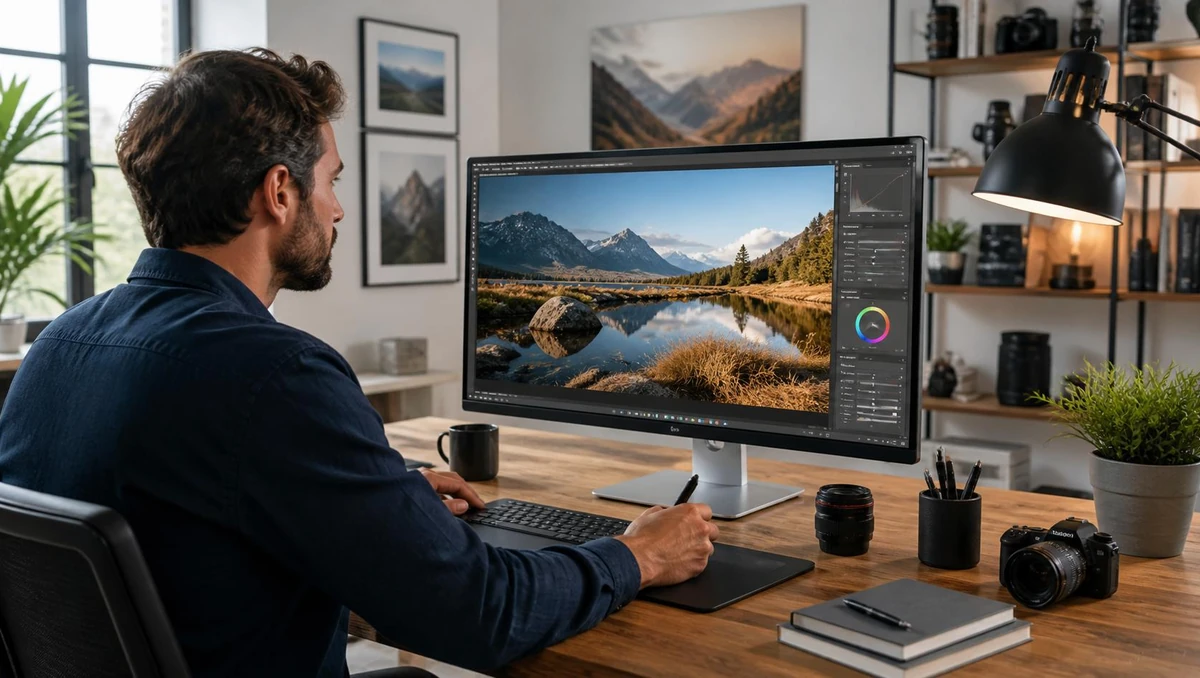
A good photo can look completely different after a few careful edits. You might want to brighten a dark picture, remove something distracting from the background, improve skin tones, or give your travel photos a more polished look. The right photo editing software makes these changes easier without making every image look heavily edited.
But choosing an editor isn’t always simple. Some programs are designed for professional photographers, while others are made for beginners who just want to improve their pictures. There are also free options with surprisingly powerful features.
The best photo editing software in 2026 depends on what you want to do, how much you’re willing to spend, and how comfortable you are with editing tools. In this Samppy guide, we’ll compare six popular options and explain where each one makes the most sense.
Key Takeaways
-
Photoshop is a strong choice for detailed retouching and image manipulation.
-
Lightroom is better suited to organizing and editing large photography collections.
-
Affinity offers powerful editing tools without a subscription.
-
GIMP is a capable free and open-source desktop editor.
-
Photopea is useful when you want to edit images directly in a browser.
-
darktable is a good option for photographers who mainly work with RAW files.
-
The right choice depends on your editing needs, budget, and computer.
What Is the Best Photo Editing Software in 2026?
The best overall choice depends on your editing style. Adobe Photoshop is a strong option for detailed image manipulation, while Lightroom is better suited to photographers who edit and organize large collections. Affinity offers powerful editing tools without a subscription, and GIMP is a capable open-source alternative.
Here are the main options worth considering:
| Software | Best for | Pricing type |
|---|---|---|
| Adobe Photoshop | Detailed editing and retouching | Paid subscription |
| Adobe Lightroom | Photo organization and RAW editing | Paid subscription |
| Affinity | Professional editing without a subscription | Free |
| GIMP | Free desktop photo editing | Free and open source |
| Photopea | Editing in a web browser | Free and paid options |
| darktable | RAW photography workflow | Free and open source |
These recommendations are based on official feature information and current product details, along with published software comparisons. They aren’t the result of a controlled hands-on test of every program, so check the latest system requirements and plan details before choosing one.
Best Photo Editing Software to Try
1. Adobe Photoshop
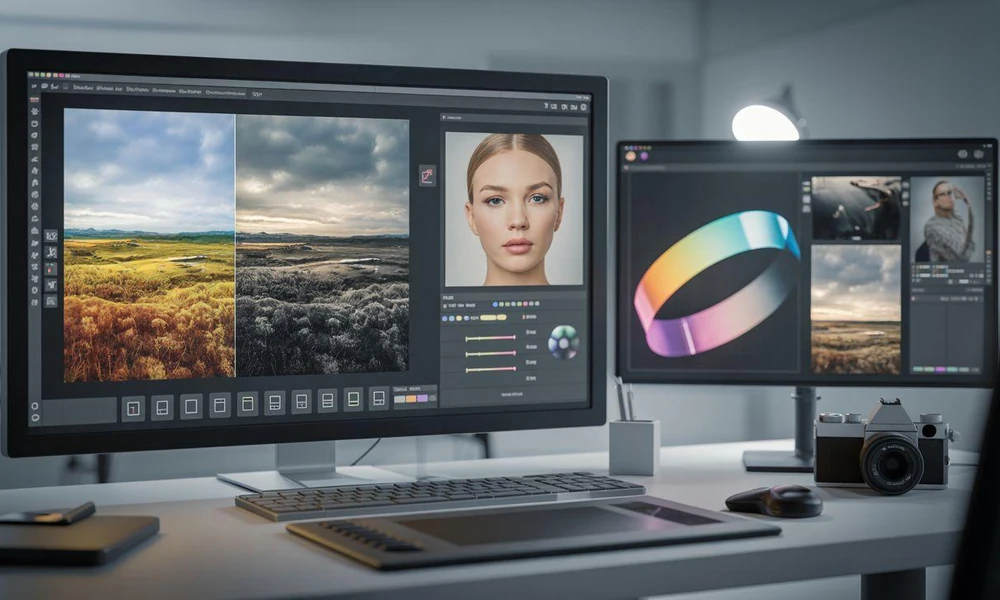
If you want detailed control over almost every part of an image, Adobe Photoshop is one of the strongest options available. It’s widely used by photographers, graphic designers, and digital artists who need more than basic brightness or color adjustments.
Photoshop works with layers, masks, selections, and retouching tools. These features let you edit one part of an image without changing everything else. For example, you can remove an unwanted object, replace a background, or combine several pictures into one design.
Its AI features also make certain tasks quicker. Adobe offers tools for removing objects, expanding image backgrounds, and making other changes with generative editing features. You can still refine the result manually when you need more control.
What makes it useful:
-
Advanced object removal and image retouching.
-
Layers and masks for precise editing.
-
Background replacement and image compositing.
-
AI-assisted editing features.
The main downside is the learning curve. Photoshop can feel overwhelming if you’ve never used a professional editor before. It’s also subscription-based, so the ongoing cost is worth considering.
2. Adobe Lightroom
Photoshop is built for detailed image manipulation, but Lightroom focuses more on the photography workflow. It’s especially useful when you take hundreds of pictures and want to organize, edit, and export them without opening each file separately.
Lightroom provides tools for exposure, highlights, shadows, color, sharpness, and noise reduction. You can also create presets, which are saved editing settings that help you apply a similar look to multiple photographs.
Another useful feature is non-destructive editing. This means your original photograph stays unchanged while Lightroom saves your adjustments separately. You can return later and change the settings without starting again.
Lightroom is a practical choice for wedding photographers, travel photographers, and anyone who regularly works with RAW images. Its catalog and batch editing workflow can save time when handling large photo collections.
However, it isn’t a full replacement for Photoshop. If you need complex layer-based designs or detailed image compositing, Photoshop is generally the better fit. Both products have different strengths, so some photographers use them together.
3. Affinity
Affinity deserves attention because its current desktop app offers professional photo editing, vector design, illustration, and layout tools without a subscription. Users can access its core Pixel, Vector, and Layout studios with a free Canva account.
For photo editing, Affinity includes layers, masks, RAW development, retouching, color adjustments, and tools for removing unwanted areas. It also supports non-destructive editing, which lets you experiment while keeping the original image safe.
This makes it useful for people who want more control than a basic photo editor provides but don’t want another monthly software payment.
What makes it useful:
-
Professional photo editing tools at no cost.
-
RAW development and retouching features.
-
Layers, masks, and adjustment controls.
-
Support for PSD files.
There are a few things to consider before switching. You’ll need a Canva account, and the software is designed for desktop use. Some AI features require a premium Canva plan, so free core editing tools and paid AI features should not be confused.
4. GIMP
If you want free photo editing software without paying for a subscription, GIMP is worth exploring. It’s an open-source image editor available for Windows, macOS, and Linux.
GIMP includes tools for retouching, image manipulation, restoring photographs, and creating graphics. You can work with layers and use additional plugins to extend what the software can do.
It’s particularly useful for people who enjoy having control over their editing setup. You can customize parts of the interface and use community-created extensions for different tasks.
GIMP is a solid choice for students, hobby photographers, and designers who want a capable desktop editor without paying for professional software.
5. Photopea
Not everyone wants to install a large editing program. Sometimes you just need to crop an image, adjust its colors, or make a quick change before sharing it. That’s where Photopea can be useful.
Photopea runs in a web browser and offers many tools you’d expect from a desktop editor. It supports layers, masks, adjustment layers, blending, and PSD files. It can also open several common image formats and selected RAW formats.
One useful detail is that Photopea processes files locally on your device, according to its website. This means you can edit without uploading your images to its servers through the normal editing workflow.
Its main advantage is convenience. You can open the website and start editing without installing software. However, browser performance depends on your computer, and a complex project may feel less comfortable than working in a dedicated desktop application.
6. darktable
darktable is a free, open-source photography workflow application designed for people who work with RAW images. It combines photo organization with editing tools, giving photographers a place to manage and process their pictures.
RAW files contain image data captured by a camera sensor before the final image processing. They offer more flexibility when adjusting exposure, highlights, shadows, and color, although they also need processing before they’re ready to share.
darktable supports non-destructive editing, meaning your original photographs remain unchanged while you work on adjustments. It also includes tools for color management, image filtering, sorting, and exporting.
The interface can take some getting used to, especially if you’re new to RAW photography. But if you want detailed control without paying for a professional subscription, it’s a strong option.
How Do You Choose the Right Photo Editing Software?
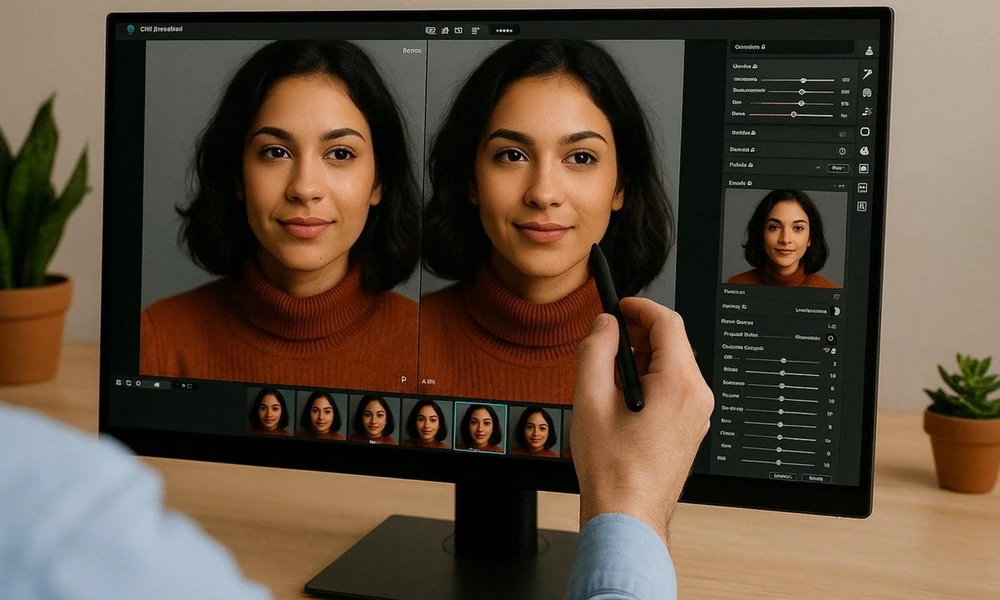
A popular editor isn’t automatically the right one for your needs. Think about the kind of pictures you work with and the changes you usually make.
What Type of Editing Do You Need?
Start with the work you actually want to do.
-
Basic edits: Choose a simple editor for cropping, resizing, brightness, and color adjustments.
-
Portrait retouching: Look for skin retouching, healing, and selection tools.
-
Professional photography: Consider RAW processing, batch editing, and image organization.
-
Graphic design: Choose software with layers, masks, and text tools.
-
Quick online edits: A browser-based option like Photopea may be enough.
Is Free or Paid Software Better?
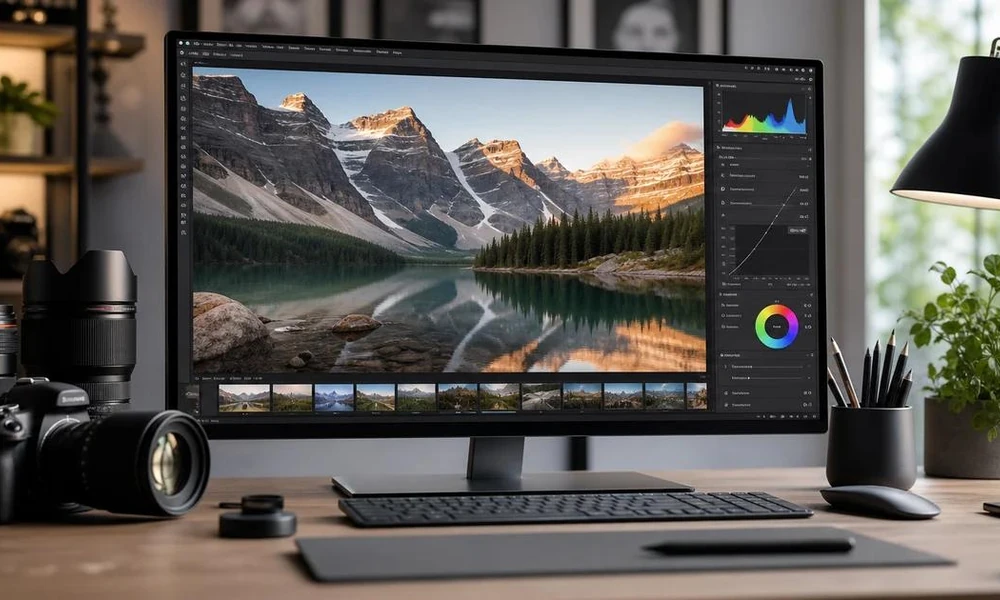
Free software can handle many serious editing tasks. Tools like Affinity, GIMP, and darktable offer useful features without requiring a paid subscription. If you’re exploring other creative options, you can also check our guide to free drawing software.
Paid software may be worth it when you need a particular workflow, advanced features, cloud services, or professional support. But paying more doesn’t automatically mean you’ll get better results. You can also use a company homepage search API to find business websites for research or other projects, while a guide to Thai food near me covers a completely different kind of search.
Try the free version or trial where available before committing to a plan.
Does It Support Your Camera and Computer?
Check whether the editor supports your camera’s RAW format if you plan to work with unprocessed photographs. Also review its operating system requirements, RAM needs, and storage space.
Large images and complex projects can use a lot of computer resources. A lightweight browser editor may be more comfortable on a modest computer than a demanding desktop application.
Frequently Asked Questions
1. What is the best photo editing software for beginners?
Photopea is worth trying if you want browser-based editing, while Affinity offers a wider set of tools for people ready to learn more advanced editing. Your best starting point depends on how much control you need.
2. What is the best free photo editing software?
Affinity, GIMP, and darktable are strong free options. Affinity offers professional editing and design tools, GIMP focuses on image manipulation, and darktable is designed around RAW photography workflows.
3. Is Photoshop better than Lightroom?
They serve different purposes. Photoshop is better for detailed retouching, layers, and combining images, while Lightroom is designed for organizing and editing photography collections. Many photographers use both.
4. Can I edit RAW photos with free software?
Yes. darktable and Affinity both support RAW editing. Photopea also supports selected RAW formats, although camera compatibility and workflow features can vary.
5. Is online photo editing software safe?
It depends on the service and how it handles your files. Check its privacy policy before uploading personal or sensitive photographs. Photopea states that its normal editing process runs locally on your device, but you should still review the service’s current privacy information.
6. Do I need AI photo editing tools?
Not for every project. AI features can speed up tasks such as removing objects or replacing backgrounds, but basic adjustments like cropping, exposure, and color correction are still useful. Choose AI features when they solve a real problem in your workflow.
Disclaimer
This article is for general informational purposes only. Software features, pricing, system requirements, and licensing terms may change. The recommendations are based on publicly available product information and are not a claim of independent hands-on testing. Check each software provider’s official website before downloading or purchasing a product.
Sources and Editorial Method
Samppy prepared this comparison using official product pages and published software guides. The descriptions focus on supported features, typical use cases, pricing models, and practical limitations. No software has been presented as a guaranteed best choice for every user.