

Choosing a code editor for your Mac sounds simple until you start looking at the options. Some editors are free and packed with extensions, while others focus on speed, AI features, or a clean macOS experience. Then there are full development environments that come with tools for building and testing complete applications.
So, which one should you install?
For most people, Visual Studio Code is the best code editor for Mac because it supports many programming languages, offers thousands of extensions, and includes useful tools for everyday development. However, it isn’t the only good choice. Cursor is worth considering for AI-assisted coding, Zed focuses on speed and collaboration, and Nova offers a more Mac-focused experience.
In this Samppy guide, we’ll compare seven options, explain what makes each one useful, and help you choose based on the way you actually write code.
Key Takeaways
-
Visual Studio Code is the strongest all-round starting point for most Mac users.
-
Cursor is worth considering if you want AI assistance while coding.
-
Zed offers a focused experience with collaboration features.
-
Sublime Text suits people who prefer lightweight editing.
-
Nova is designed around the macOS experience.
-
BBEdit is useful for text, HTML, and code editing.
-
Xcode is the natural choice for developing Apple applications.
What Is the Best Code Editor for Mac?
The best option depends on your projects and how much help you want from your editor. Here’s a quick look at the main choices:
| Code editor | Best for | Pricing |
|---|---|---|
| Visual Studio Code | General programming and web development | Free |
| Cursor | AI-assisted coding | Free and paid plans |
| Zed | Speed and collaboration | Free and paid plans |
| Sublime Text | Lightweight editing | Free evaluation, paid license |
| Nova | Native macOS development experience | Paid |
| BBEdit | Text, HTML, and code editing | Free mode and paid features |
| Xcode | Apple app development | Free |
These tools aren’t identical. Some are lightweight editors that you can customize, while others provide a more complete development environment. The right choice is the one that supports your programming language without making everyday work unnecessarily complicated.
7 Best Code Editors for Mac to Consider in 2026
1. Visual Studio Code
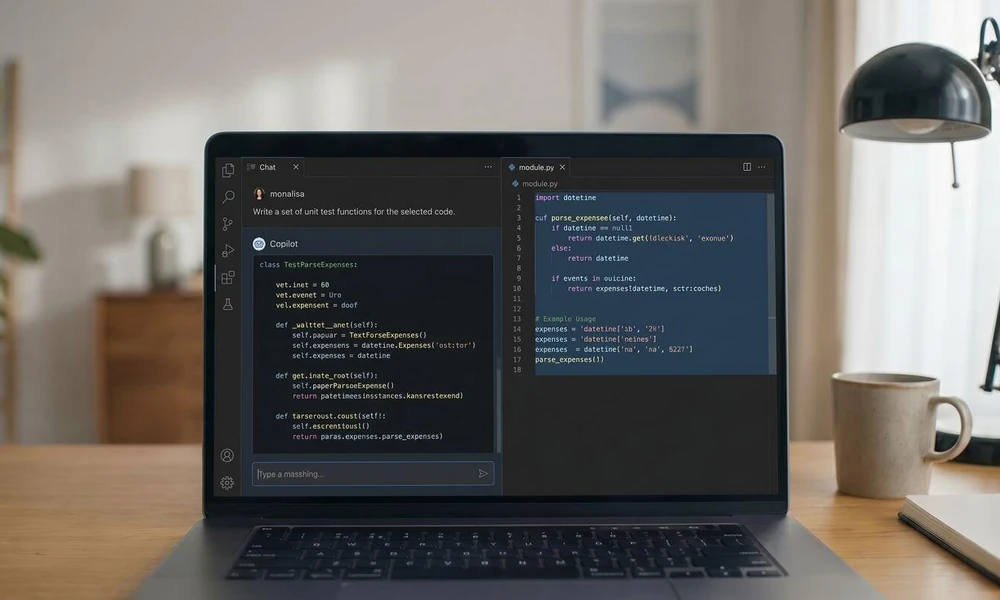
If you want one editor that can handle different types of programming, start with Visual Studio Code (VS Code).
It’s free and works with languages such as JavaScript, Python, HTML, CSS, PHP, and many others. You can also install extensions to add features that aren’t included in the basic installation.
For example, a web developer can add tools for formatting code, checking errors, working with Git, and managing different programming languages. VS Code also includes an integrated terminal, so you can run commands without constantly switching between windows.
Why choose it?
-
Free to download and use.
-
Supports Intel and Apple silicon Macs.
-
Large extension marketplace.
-
Built-in Git support and debugging features.
-
Useful for web development and general programming.
The main downside is that VS Code can feel crowded after installing too many extensions. It also needs additional tools for some development tasks, so beginners may need a little time to set everything up. Microsoft provides separate Mac downloads for Intel and Apple silicon systems.
2. Cursor
Cursor is a code editor built around AI assistance. It can suggest code, answer questions about your project, and help make changes using instructions written in normal language.
Imagine you’re working on a website and need to update several functions. Instead of manually searching through every file, you can ask Cursor to understand the relevant code and suggest changes.
It can be useful for developers who regularly work with large projects or want AI support while coding. Cursor also offers a familiar editing experience and allows users to import extensions, themes, and keybindings.
Why choose it?
-
AI-powered code suggestions.
-
Can work with information from your codebase.
-
Supports editing through natural-language instructions.
-
Familiar interface for developers moving from VS Code.
-
Privacy Mode is available.
The important thing is not to accept every suggestion without checking it. AI-generated code can contain mistakes, introduce security problems, or misunderstand what your project needs. Cursor also offers different pricing plans, so check the current limits before subscribing.
3. Zed
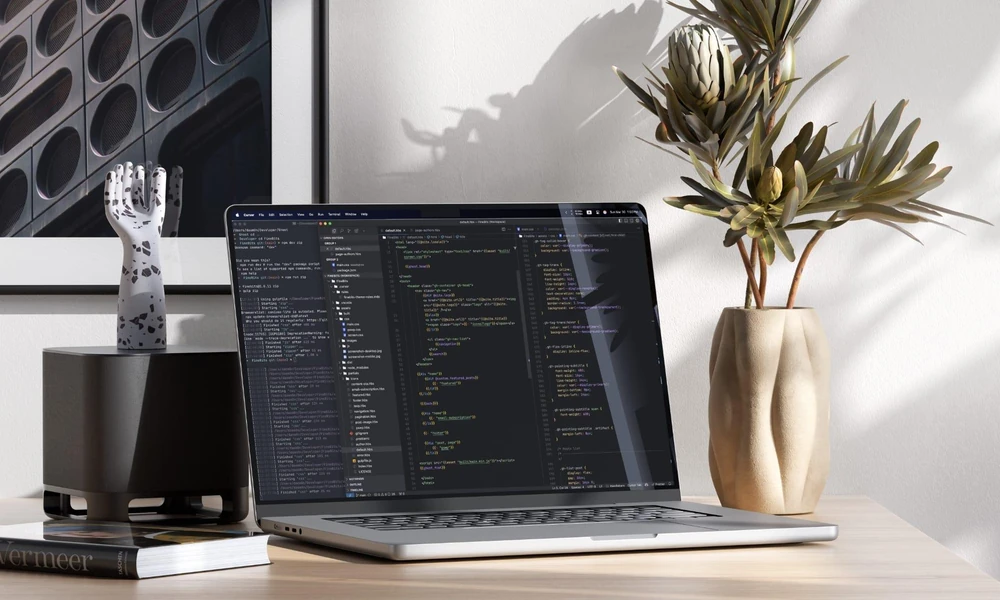
Zed is a modern code editor designed around speed, collaboration, and a focused interface. It’s worth considering if you prefer a clean workspace instead of an editor filled with panels and menus.
One of its interesting features is multiplayer collaboration. You can work with other developers and share your coding session rather than sending files back and forth.
Zed also includes AI-related features, but you don’t have to use them. Its Personal plan is free, while Pro adds more AI usage and other benefits.
Why choose it?
-
Clean and focused interface.
-
Built-in collaboration features.
-
AI assistance is available.
-
Supports Apple silicon and Intel Macs.
-
Free Personal plan.
Zed may take some adjustment if you’re used to VS Code. Its extension ecosystem and workflow are also different, so check whether it supports the tools your projects require.
Install Zed – macOS, Linux, Windows+2
4. Sublime Text
Sometimes you don’t need a full development workspace. You just want an editor that opens quickly, handles code comfortably, and stays out of your way. That’s where Sublime Text fits.
It’s known for its clean interface and fast editing experience. Features such as multiple selections let you change several parts of a file at once, which can save time when working with repeated code.
Sublime Text is useful for HTML, CSS, JavaScript, Python, and general text editing. You can also extend its features with packages.
Why choose it?
-
Lightweight editing experience.
-
Multiple selections and useful keyboard shortcuts.
-
Supports different programming languages.
-
Available for macOS.
-
Suitable for quick changes and larger text files.
You can download and evaluate Sublime Text without paying immediately, but a license is required for continued use. It’s also less beginner-friendly if you expect everything to work through built-in menus and automatic setup.
5. Nova
Nova is designed specifically for macOS, which makes it an interesting option if you prefer software that feels at home on your Mac.
It includes syntax highlighting, code completion, multiple cursors, code folding, and project tools. It also supports debugging, Git workflows, and extensions.
For web developers, Nova can be useful for managing website projects and editing different files in one workspace. Its interface is designed around the Mac experience rather than trying to look the same on every operating system.
Why choose it?
-
Designed for macOS.
-
Code completion and syntax highlighting.
-
Git and debugging support.
-
Project workflows and extensions.
-
Free trial before purchase.
Nova is paid software. Its current purchase page lists a one-time price of $99 plus tax, including one year of updates. After that, an optional annual renewal is available for continued updates. Check its system requirements before purchasing because the current version requires macOS 15.6 or later.
6. BBEdit
BBEdit is a long-running Mac editor that’s especially useful for working with text, HTML, and code files. It offers features such as syntax coloring, code folding, text completion, and search across multiple files.
Its search and replace tools can be particularly useful when you’re updating repeated text across a website or working with large collections of files.
BBEdit also has a free mode. After its 30-day evaluation period, you can continue using a core set of features without paying. Advanced features require a subscription.
Why choose it?
-
Useful text and code editing tools.
-
Strong search and replace features.
-
HTML and XML editing support.
-
Works with Apple silicon and Intel Macs.
-
Free mode remains available after evaluation.
It’s not the first option I’d suggest for someone who wants an all-in-one environment for every programming language. However, it can be a practical choice for web files, scripts, and text-heavy projects.
7. Xcode
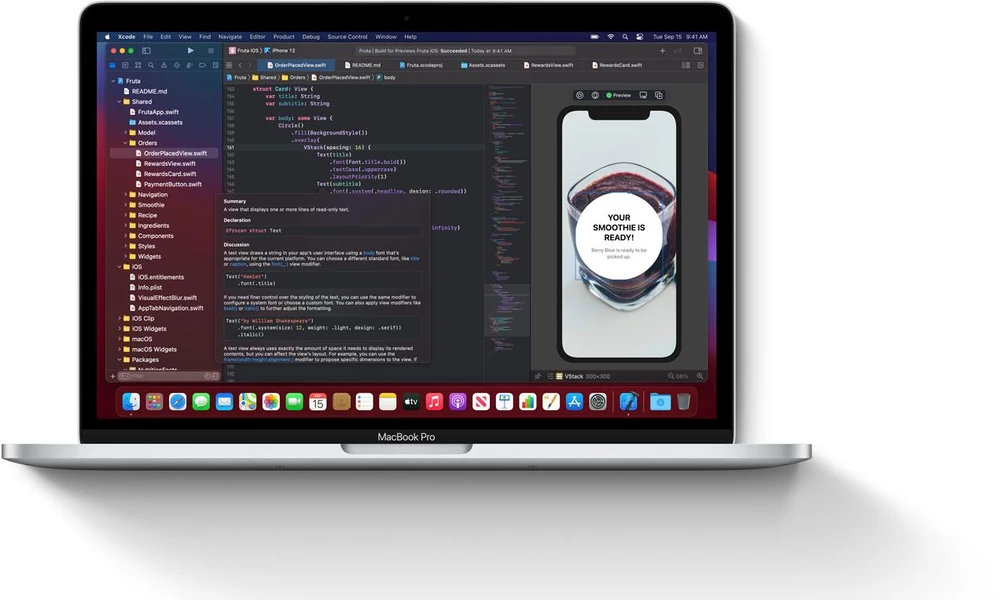
If your goal is to build apps for iPhone, iPad, Apple Watch, or Mac, Xcode deserves a place on your list. While exploring creative tools like free drawing software, you may also come across different ways to create digital products.
Unlike a lightweight code editor, Xcode is a complete integrated development environment (IDE). That means it brings together tools for writing code, building applications, testing them, and finding errors. You can also explore company homepage APIs when working on projects that need business information or website data.
It supports Swift and Apple’s development frameworks. You can also use Simulator to test apps on virtual Apple devices without needing a physical iPhone or iPad for every test. For projects involving location-based features, resources such as Thai food near me can offer an example of the kind of local search experience developers may want to build.
Why choose it?
-
Designed for Apple platform development.
-
Supports Swift and SwiftUI.
-
Includes debugging and testing tools.
-
Offers device simulators.
-
Helps manage the app development process.
The downside is that Xcode is more specialized than VS Code or Sublime Text. If you’re mainly building websites or working with unrelated programming languages, another editor may suit you better.
How Do You Choose the Right Mac Code Editor?
Before installing several editors, think about what you actually want to build. A beginner learning HTML and CSS doesn’t need the same setup as someone developing an iOS application.
Check Your Programming Language
Start by checking whether the editor supports your main language. If you work with JavaScript, PHP, Python, or HTML, VS Code is a flexible starting point. For Swift and Apple app development, Xcode makes more sense.
Look at Extensions and Tools
Extensions add features such as code formatting, language support, debugging, and Git integration. They can make an editor much more useful, but check that the extensions you need are available and maintained.
Consider Your Mac’s Hardware
Check whether the editor supports your Mac’s processor and macOS version. Apple silicon and Intel Macs can have different download options, so choose the correct build when one is provided.
Decide Whether You Need AI Features
AI coding tools can explain code, suggest fixes, and help with repetitive tasks. They can also make incorrect changes, so you’ll still need to review the output.
If you work with private projects, read the editor’s privacy settings and understand how your code is handled before enabling cloud-based AI features.
Frequently Asked Questions
1. What is the best free code editor for Mac?
Visual Studio Code is a strong free option for most developers. Zed also has a free Personal plan, while BBEdit offers a free mode with a smaller set of features.
2. Is Visual Studio Code good for Mac?
Yes. VS Code supports both Intel and Apple silicon Macs and works with many programming languages. Its extensions also let you add tools for different development workflows.
3. Is Cursor better than VS Code?
It depends on how you work. Cursor focuses heavily on AI-assisted coding, while VS Code offers a broad extension ecosystem and a flexible general-purpose editor. Try both before deciding.
4. Which Mac code editor is best for beginners?
VS Code is a practical starting point because it’s free and supports many languages. Beginners can start with basic editing and add extensions as they learn.
5. Do I need Xcode to code on a Mac?
No. You can use VS Code, Cursor, Sublime Text, or other editors for many programming tasks. Xcode is mainly needed when you want Apple’s official tools for building, testing, and distributing apps for Apple platforms.
Disclaimer
This article is for general informational purposes only. Software features, pricing, system requirements, and licensing terms can change. The comparisons are based on publicly available product documentation and are not the result of independent performance testing. Check each developer’s official website before downloading or purchasing software.
Research sources
The comparison above uses official product documentation where available, alongside independent software coverage. The recommendations are based on features and intended use, not invented benchmark results or claims of hands-on testing.