According to industry reports, video content accounts for over 82 percent of all consumer internet traffic, driving millions of creators to seek capable editing tools that do not require monthly fees. Finding capable software without spending money once meant dealing with forced watermarks, severely limited export resolutions, and locked timelines. That dynamic has changed completely. Today, open-source developers and major post-production studios distribute full-featured editing suites at no cost.
Whether you need to assemble vertical video clips for social feeds, grade cinematic footage, or splice multi-track recordings, free tools deliver desktop-grade results. Choosing the right tool depends on your technical comfort, your computer hardware, and the specific needs of your projects. This guide evaluates the leading free video editing software applications available today, comparing their editing features, hardware demands, and export parameters.
Top Free Video Editing Software for Beginners and Social Media Creators in 2026
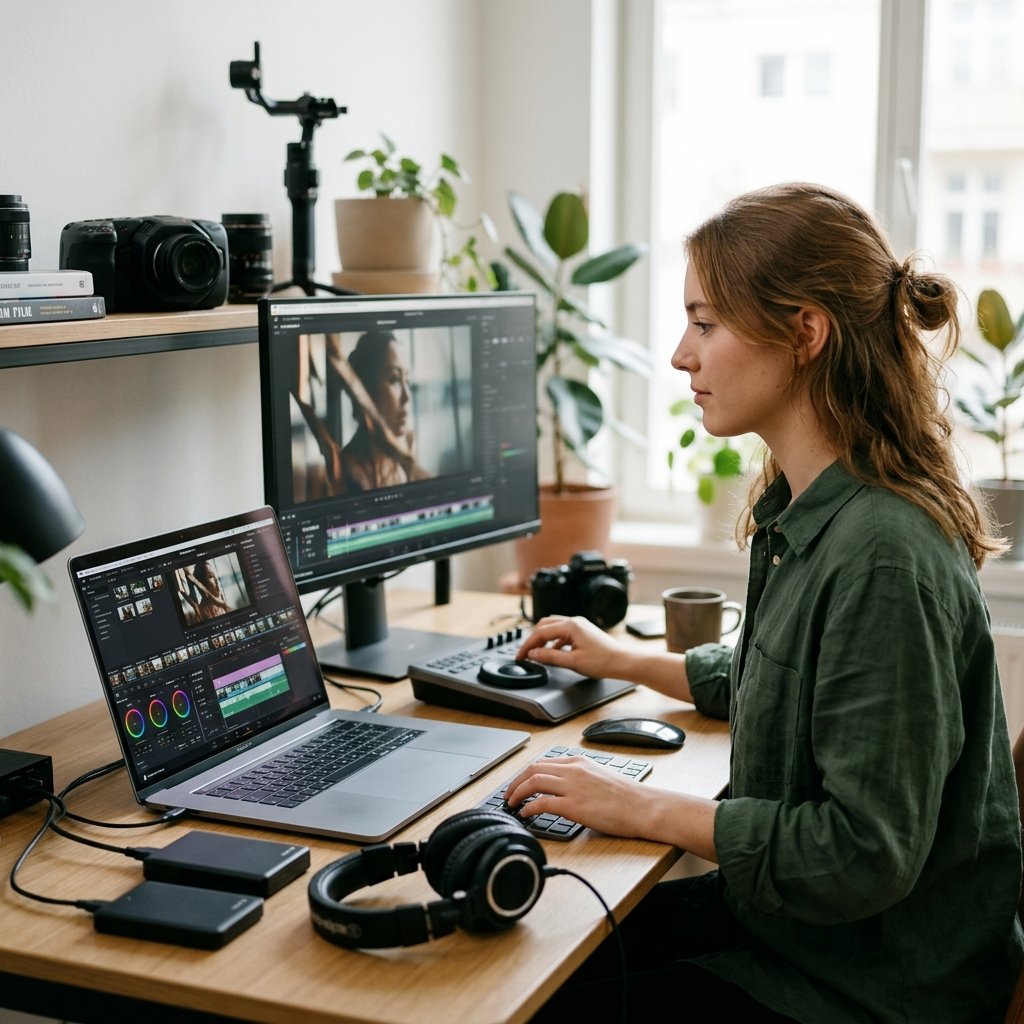
New video creators require clear interfaces that eliminate clutter while providing reliable timeline tools. Overly technical interfaces can slow down basic tasks like cutting home footage or uploading social media clips. Fortunately, entry-level applications now handle automated timeline snapping, direct format conversions, and text titling without steep learning curves.
OpenShot Video Editor
Licensed under the GPLv3, OpenShot is a completely open-source program that runs on Windows, macOS, Linux, and ChromeOS. It uses an FFmpeg-based video processing engine that reads almost any raw file format, so you do not need to convert clips before editing. The application offers an unlimited number of audio and visual tracks, enabling you to stack background music, voiceover tracks, b-roll overlays, and graphic logos with ease.
For creators who want stylized openers, OpenShot links directly with external graphics tools. By connecting the application to Blender, users can produce animated 3D titles and geometric effects directly inside the editing window. You can read more about its capabilities through OpenShot Video Editor. If you frequently prepare custom illustrations or overlays before importing your media, pairing OpenShot with the best free drawing software in 2026: 8 tools compared keeps your asset creation workflow entirely cost-free.
Shotcut
Shotcut provides a step up in timeline control without moving into difficult territory. Distributed as a free, cross-platform program under the GPL-3.0 license, Shotcut uses the MLT Multimedia Framework and FFmpeg to process files. Its standout practical benefit is native timeline editing: you do not need to wait for the program to import or transcode large files into an internal database. You simply drag camera media directly into the tracks and begin editing immediately.
The software handles resolutions up to 4K and includes detailed audio filters, color correction wheels, and parametric keyframing. The interface is modular, meaning you can dock, hide, or detach panels for scopes, clip properties, and playlists based on your workspace setup. To learn more about its framework and cross-platform installation, review Shotcut.
| Software | License Type | Platform Support | Maximum Free Resolution | Best For |
|---|---|---|---|---|
| OpenShot | Open Source (GPLv3) | Windows, macOS, Linux, ChromeOS | 4K UHD | Beginners and quick clip assembly |
| Shotcut | Open Source (GPL-3.0) | Windows, macOS, Linux | 4K UHD | Native editing without transcoding |
| Clipchamp | Proprietary Freemium | Windows 11, Web Browsers | 1080p Full HD | Social media stories and quick cuts |
| Kdenlive | Open Source (GPLv2+) | Linux, Windows, macOS, BSD | 4K UHD | Advanced open-source multi-track work |
| DaVinci Resolve | Proprietary Freeware | macOS, Windows, Linux | Ultra HD (3840×2160) | Professional color grading and audio |
Best Free Professional-Grade Video Editors for Advanced Filmmaking and Post-Production

Filmmakers and dedicated video producers need advanced toolsets. These include node-based compositing, accurate color science, multi-track audio mastering, and standard project file interchange formats. While commercial production environments often rely on expensive monthly subscriptions, two notable desktop tools supply studio-level capabilities at zero cost.
DaVinci Resolve (Free Version)
Blackmagic Design provides a free version of DaVinci Resolve for macOS, Windows, and Linux that includes non-linear editing, Fusion visual effects, Fairlight audio production, and node-based color grading without watermarks. Unlike basic trimming applications, Resolve operates on the exact same timeline interface used across high-budget Hollywood feature films and television series.
The software includes full multi-user collaboration tools, allowing editors, assistant editors, colorists, and sound designers on different computers to work simultaneously on the same project timeline. The free edition exports files up to Ultra HD 3840×2160 resolution at 60 frames per second. For complete technical documentation on supported hardware panels and color management specifications, consult the verified project history on Wikipedia.
Kdenlive and Open-Source Production
Kdenlive is developed under the KDE Project and powered by the MLT Framework. It serves as an open-source non-linear editor for Linux, Windows, macOS, and BSD systems. Kdenlive is equipped with a dual-monitor interface, customizable multi-track timelines, parametric keyframing, and automatic audio-video synchronization.
A major advantage of Kdenlive is its support for OpenTimelineIO. This standard project exchange format allows editors to export timeline cut data directly to other post-production platforms without losing edit points. Kdenlive also provides title generators, vector scopes, audio mixers, and backup systems that protect projects from hardware crashes. For creators who prepare still photography assets, title cards, and thumbnail layouts before building scenes in Kdenlive, testing your graphic assets with the best photo editing software in 2026: top tools compared ensures clean resolution matching on the timeline.
High-Performance Free Browser-Based and Cloud Video Editors for Quick Turnarounds
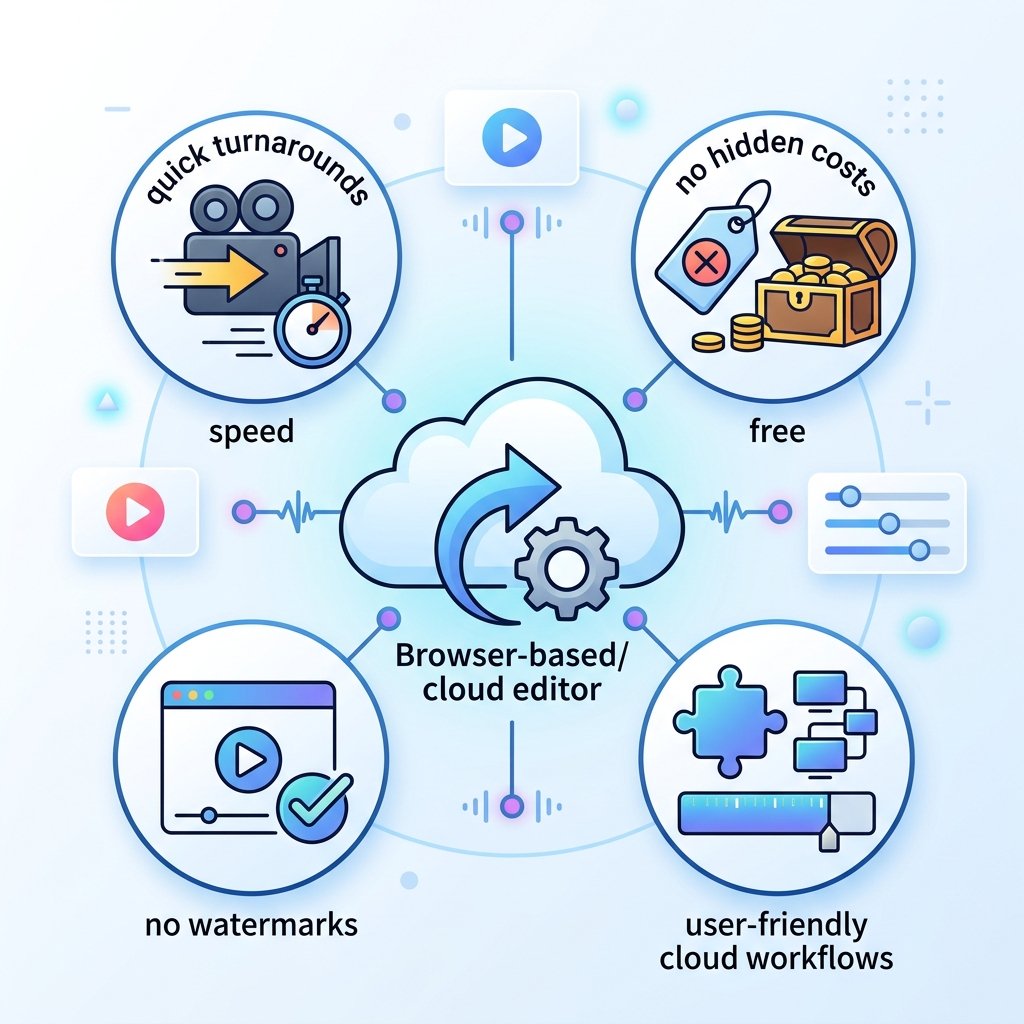
Not every project requires a complex desktop installation. When working on school projects, corporate presentations, or quick social video posts from a low-spec laptop, browser-based and pre-installed lightweight tools save hours of configuration time. Modern web standards now allow real-time media slicing, audio leveling, and subtitle rendering inside an everyday internet browser.
Microsoft Clipchamp
Clipchamp serves as the default video editing utility bundled with Windows 11 and operates seamlessly via desktop web browsers. Designed for rapid assembly, Clipchamp features intuitive cutting tools, animated transitions, screen-and-webcam capture, and social aspect ratio presets.
The free personal tier provides watermark-free exports up to 1080p Full HD resolution. Because it uses cloud storage integration alongside local processing, you can start a draft on one computer and continue refining basic cuts on another machine without transferring video files manually. The program also includes speech-to-text generators that produce editable closed captions in seconds. Detailed service parameters and account features are maintained by Microsoft.
Blender Video Sequence Editor (VSE)
While widely recognized for three-dimensional modeling and character animation, the open-source Blender software package includes an integrated Video Sequence Editor. The VSE functions as a track-based timeline capable of handling basic clip splicing, crossfades, audio mixing, color grading, and mask-based compositing.
Because the VSE is built into the core Blender engine, it runs on minimal system memory compared to heavy standalone post-production suites. It works across Windows, macOS, and Linux, giving creators who already use 3D graphics tools a built-in method to assemble final render passes without launching separate commercial software. For programmers and technical directors who write Python scripts to automate video rendering pipelines, editing your custom Blender automation files alongside the best code editor for mac in 2026: 7 tools compared speeds up development considerably.
Key Selection Criteria: How to Choose the Right Free Video Editor Without Watermarks or Hidden Costs
The term “free” in software marketing often hides restrictive limitations. Many applications lure users with zero-dollar downloads, only to demand credit card details when you click the final export button. Avoiding these traps requires checking key software parameters before spending hours editing your project.
- Verify Watermark Policies: Commercial freemium tools frequently apply large center-screen logos on your exported video unless you buy a paid license. Reliable programs state clearly whether their free tier exports clean, unbranded files. Every desktop tool highlighted in this guide produces watermark-free video.
- Review Export Resolution Limits: Certain free video editors restrict your output files to 720p resolution, which looks blurry on modern desktop displays and mobile devices. A capable free editor should provide at least 1080p Full HD output, while professional-grade tools like DaVinci Resolve, Shotcut, and Kdenlive deliver full 4K UHD exports without cost.
- Examine Timeline Track Flexibility: Basic tools often limit projects to a single video track and one audio track. Look for software that provides multi-track editing, allowing you to layer text titles, sound effects, voice tracks, and b-roll clips simultaneously.
- Inspect Audio Toolsets: Clean sound makes up half of the viewing experience. Ensure your chosen software includes basic audio equalizers, volume keyframing, and noise reduction filters so dialogue remains clear and audible.
- Check Licensing and Data Privacy: Open-source editors operating under GPL licenses protect your personal data and will never lock your projects behind future subscription walls. For desktop freeware, check terms of service to confirm your footage remains your private property.
Hardware Requirements and System Tuning Tips for 2026 Video Editing
High-resolution video editing places heavy computational loads on your computer. Choppy timeline playback, dropped frames, and frozen exports often occur when media formats overload your processor and graphics card. Implementing proper hardware preparation and workflow practices prevents editing bottlenecks.
Recommended System Specifications
Running modern editing applications reliably requires balanced hardware. While simple cutting tools run on modest hardware, multi-track timelines and color grading suites require capable system resources:
- Processor (CPU): A multi-core processor (64-bit Intel Core i7/i9, AMD Ryzen 7/9, or Apple Silicon M-series). Video decoding depends heavily on CPU thread counts.
- System Memory (RAM): A minimum of 16 GB of RAM is recommended for 1080p projects, while smooth 4K editing requires 32 GB or more.
- Dedicated Graphics (GPU): A dedicated graphics card with at least 4 GB to 8 GB of video RAM (VRAM) ensures hardware-accelerated playback for effects, scaling, and color grading.
- Storage Drives: Solid-state drives (NVMe or SATA SSDs) are necessary for smooth playback. Editing high-bitrate video from a mechanical hard drive causes dropped frames during timeline scrub operations.
Practical Optimization Workflow
Even with capable hardware, editing raw 4K camera files directly can cause timeline stuttering. Professional editors rely on proven performance techniques:
- Generate Proxy Media: Proxies are lightweight, low-resolution copies of your original footage used strictly during editing. Your software cuts the low-demand proxy clips smoothly, then automatically switches back to the full-resolution camera originals when exporting the final master file.
- Set Render Cache Settings: Programs like DaVinci Resolve and Kdenlive allow background rendering of complex timeline sections. If you apply heavy visual effects or titles to a clip, let the software pre-render that segment to your fast SSD cache drive for smooth playback.
- Manage Project Drive Paths: Store your operating system, your software installation, your media assets, and your cache files on separate SSD partitions or distinct drives. Distributing read and write operations prevents storage bottlenecks during playback.
- Update Graphics Drivers: Always keep your GPU drivers updated to the latest studio or production branch. Graphics driver updates frequently fix stability issues in video decoding and timeline playback engines.
Key Takeaways
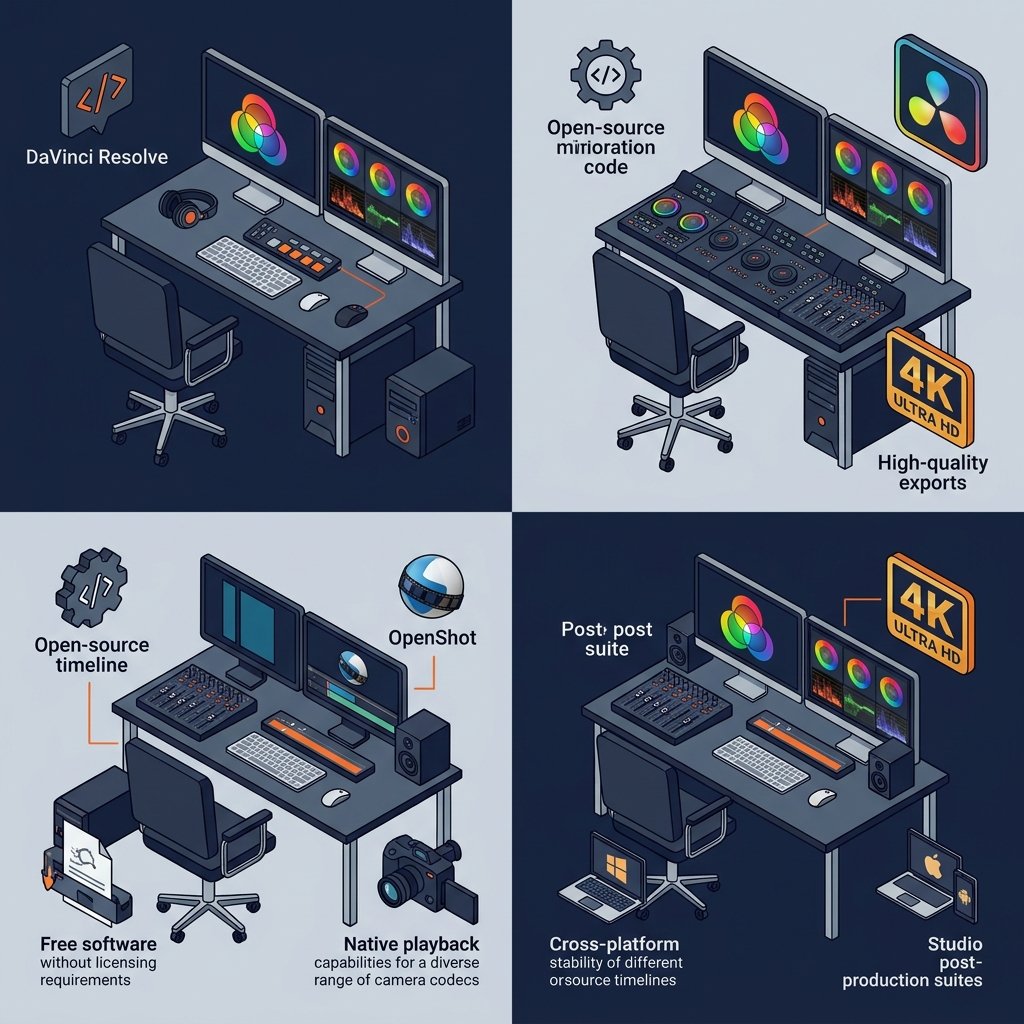
- DaVinci Resolve offers the most complete free post-production suite available, delivering studio-grade color grading, Fairlight audio tools, and 4K Ultra HD exports without watermarks.
- Shotcut and OpenShot provide completely open-source timelines with no licensing fees, cross-platform stability, and native playback across almost any camera codec.
- Kdenlive stands out for multi-track editing on Linux, Windows, and macOS, featuring OpenTimelineIO support for direct project transfers across platforms.
- Microsoft Clipchamp gives Windows users a fast, pre-installed editing program with free 1080p Full HD exports for quick social clips.
- Blender includes a lightweight Video Sequence Editor that allows creators to cut and assemble video without loading external standalone software.
- Smooth editing depends on using proxy media, allocating at least 16 GB of RAM, and storing media assets on high-speed solid-state drives.
Conclusion
The market for free video editing software in 2026 gives every creator access to professional post-production tools without upfront purchases or recurring software fees. For casual vloggers, educators, and social media creators, user-friendly choices like OpenShot and Microsoft Clipchamp offer straightforward interfaces that cut clips, add titles, and export clean 1080p video quickly.
For aspiring filmmakers, commercial videographers, and post-production specialists, DaVinci Resolve and open-source suites like Shotcut and Kdenlive deliver complete multi-track control, advanced color grading, and studio-grade audio mixing. By selecting software that matches your project scope and optimizing your computer with proxy media workflows, you can produce polished video content entirely with free tools.
What is the best free video editing software without a watermark?

DaVinci Resolve is the most capable free software that exports videos without a watermark up to Ultra HD 4K resolution. Open-source options like Shotcut, Kdenlive, and OpenShot also provide completely watermark-free video exports across all platforms.
Can my laptop handle free 4K video editing?
Your laptop can handle 4K video editing if it contains at least 16 GB of RAM, a modern multi-core processor, and a solid-state drive. If your system stutters during playback, generating low-resolution proxy files inside your editor allows smooth timeline cutting on modest hardware.
Is DaVinci Resolve really 100 percent free to use?
Yes, Blackmagic Design offers a fully functional free edition of DaVinci Resolve for macOS, Windows, and Linux. It includes full editing, Fairlight audio mastering, Fusion visual effects, and node-based color grading without watermarks, project limits, or commercial restrictions.
What is the easiest free video editor for beginners?

OpenShot and Microsoft Clipchamp are the easiest free video editing tools for beginners. Both programs feature clear timeline interfaces, simple drag-and-drop mechanics, and pre-configured export settings tailored for web video and social media formats.
What is the difference between open-source and freemium video editors?
Open-source editors like Shotcut and Kdenlive are developed collaboratively under public licenses, ensuring all features and codecs remain completely free forever. Freemium tools are proprietary applications that provide basic features for free while keeping premium filters, higher resolutions, or cloud tools behind paid upgrades.
Does free video editing software support green screen and chroma key effects?
Yes, free video editors including DaVinci Resolve, Shotcut, and Kdenlive include built-in chroma key filters. These tools allow you to isolate solid green or blue backgrounds cleanly, letting you place custom backgrounds and graphics behind your subjects.