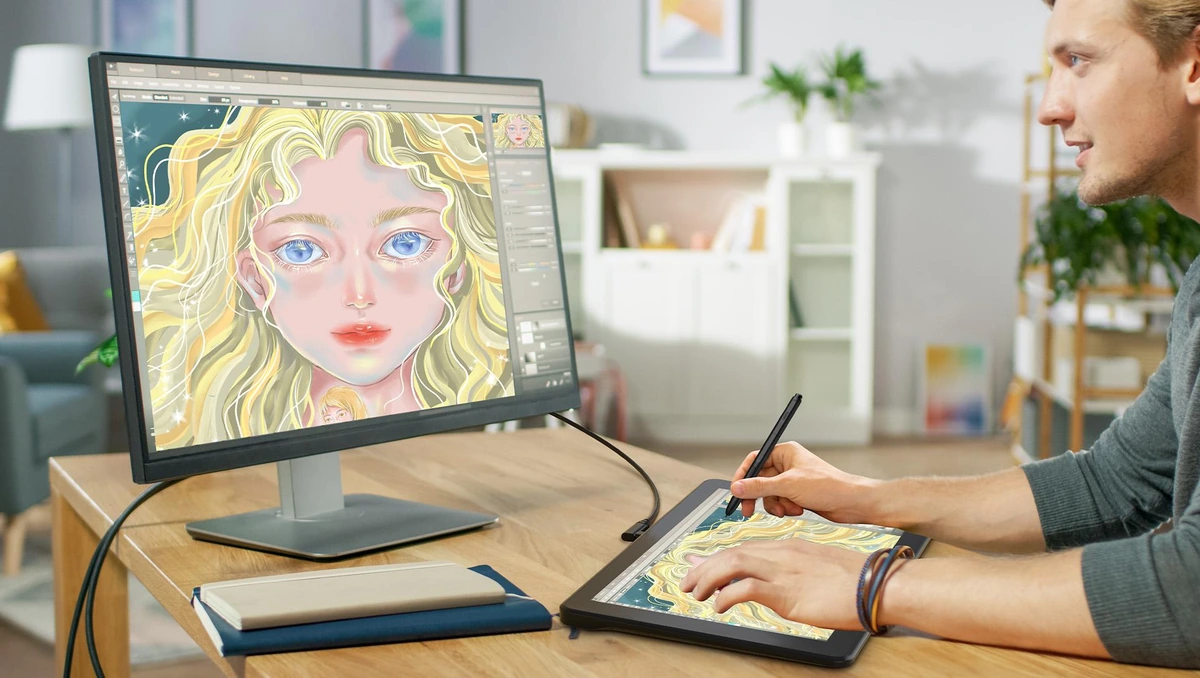
You don’t need to spend money on expensive software to start drawing digitally. Whether you want to sketch characters, create illustrations, design a logo, or make your own comic, there are free tools that can help you get started.
The trick is finding software that matches the way you like to draw. Some programs are built for painting with digital brushes, while others are better for clean shapes, logos, and graphic design. A few work directly in your browser, so you can start without installing anything.
For most people who want a full desktop painting program, Krita is an excellent place to start. Inkscape is a better fit for vector graphics, while GIMP is useful when drawing and photo editing overlap. This Samppy guide compares eight options, explains their strengths and limitations, and helps you choose without paying for features you may never use.
Key Takeaways
- Krita is a strong starting point for free desktop digital painting.
- Inkscape is better suited to logos and scalable vector graphics.
- GIMP is useful when photo editing and drawing overlap.
- MediBang Paint is worth considering for manga and comics.
- Sketchbook, Adobe Fresco, FireAlpaca, and Kleki suit different drawing styles and devices.
- Check current pricing, device compatibility, export options, and licensing before choosing.
What Is the Best Free Drawing Software?
The best choice depends on what you want to create, your device, and how much control you need. Here are eight options worth considering.
- Krita: Best for digital painting and detailed illustrations.
- Inkscape: Best for logos, icons, and vector artwork.
- GIMP: Best for image editing and creative projects.
- MediBang Paint: Best for comics and manga.
- Sketchbook: Best for straightforward sketching, depending on the version and device.
- Adobe Fresco: Best for brush-based drawing on supported devices, with optional paid features.
- FireAlpaca: Best for simple digital drawing and comic work.
- Kleki: Best for quick browser-based sketches.
These tools aren’t identical, and free access doesn’t always mean every version or feature is free. Check the official website for the current terms before downloading or starting a project.
1. Krita: Best for Digital Painting
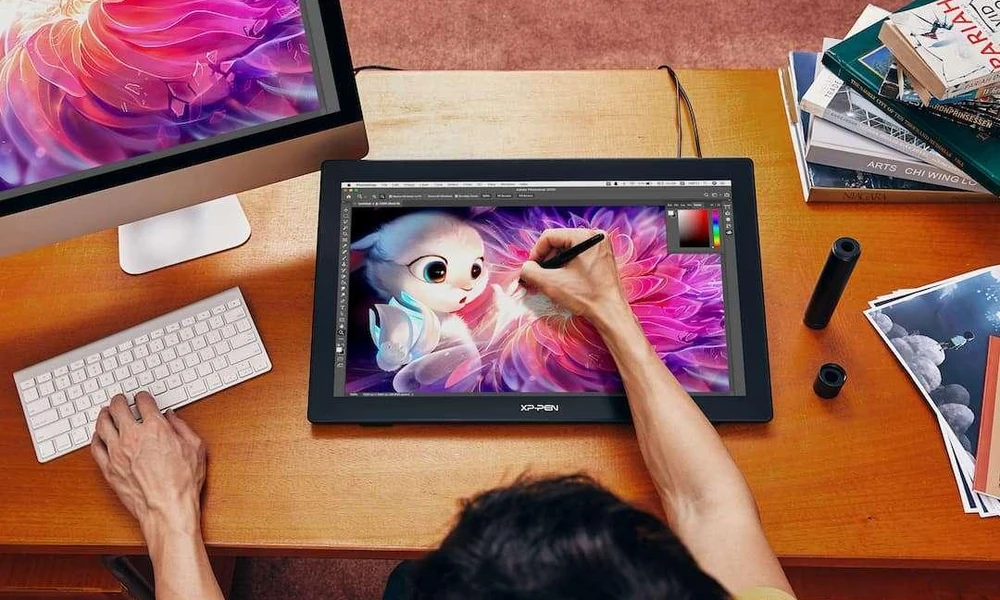
If you want to draw characters, paint landscapes, or develop detailed illustrations, Krita is one of the strongest free options available. It’s open-source software designed for digital artists, and its official website lists features such as multiple brush types, layers, drawing assistants, and animation tools.
What makes Krita useful?
Krita gives you control over how your digital brush behaves. You can experiment with different brush styles, work on separate layers, and refine details without having to redraw the entire image.
Layers are especially helpful because they let you keep parts of an artwork separate. For example, you could draw a character’s outline on one layer, color on another, and add shadows on a third. This makes changes easier to manage.
Best for: Digital painting, concept art, character design, comics, and illustration.
Limitations: The number of tools and settings can feel overwhelming when you’re opening drawing software for the first time. Give yourself time to learn the interface instead of trying every feature immediately.
2. Inkscape: Best for Logos and Vector Drawing
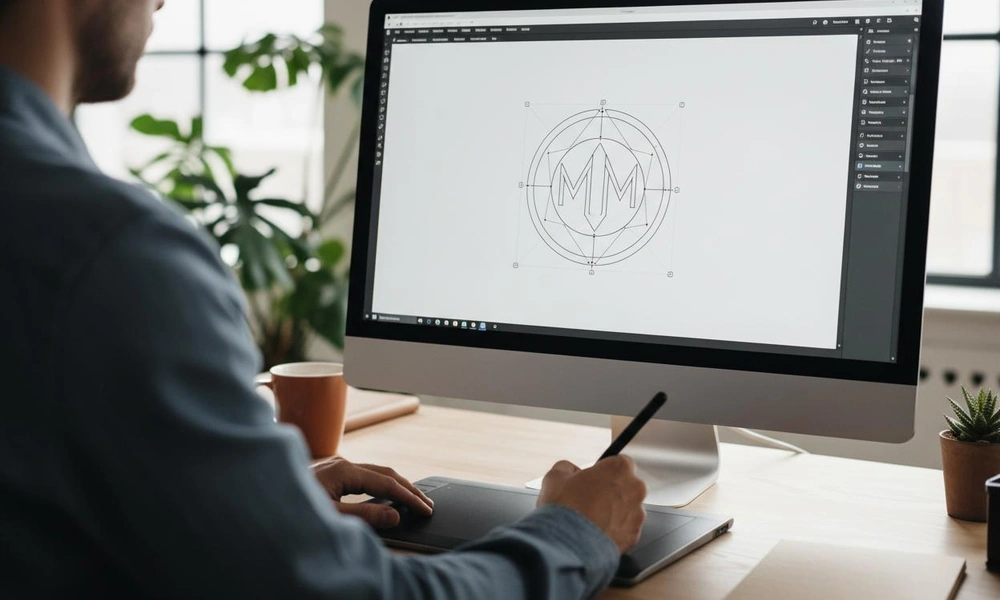
Not every drawing project needs realistic brush strokes. If you want to design a logo, create icons, draw diagrams, or make graphics that stay sharp at different sizes, Inkscape is worth a look.
Inkscape is a free, open-source vector graphics editor. Unlike ordinary pixel-based images, vector artwork uses paths and shapes that can be resized without becoming blurry. That’s why vector software is often useful for logos and illustrations intended for different screen sizes or print layouts.
When should you choose Inkscape?
Imagine designing a logo for a small business. You might need one version for a website and another for a large sign. Vector artwork makes it easier to resize the design while keeping its edges clean.
Inkscape also supports SVG, a common format for scalable graphics used on websites and in design workflows.
Best for: Logos, icons, diagrams, typography, and scalable illustrations.
Limitations: Its tools work differently from painting software. If you want to create soft brush strokes or paint a detailed digital portrait, Krita may feel more natural.
3. GIMP: Best for Drawing and Image Editing
GIMP is a free, open-source image editor available for Windows, macOS, and Linux. Although many people use it to edit photographs, it can also support illustration, image compositing, and other creative work.
Its main advantage is flexibility. You can adjust colors, remove unwanted parts of an image, combine several images, and work with layers. These features are useful when your project involves both drawing and editing existing pictures.
Is GIMP suitable for beginners?
It can be, particularly if your goal is to learn image editing alongside basic digital art. However, its interface and tools may take time to understand.
If you mainly want a natural painting experience with a wide selection of art brushes, Krita is likely a better starting point. If you regularly edit photographs or combine visual elements, GIMP deserves a place on your shortlist.
Best for: Photo editing, image composition, digital graphics, and mixed creative projects.
Limitations: It isn’t designed primarily as a dedicated painting program, so some drawing tasks may feel less direct than they do in Krita.
You can find downloads and documentation on the official GIMP website.
4. MediBang Paint: Best for Comics and Manga
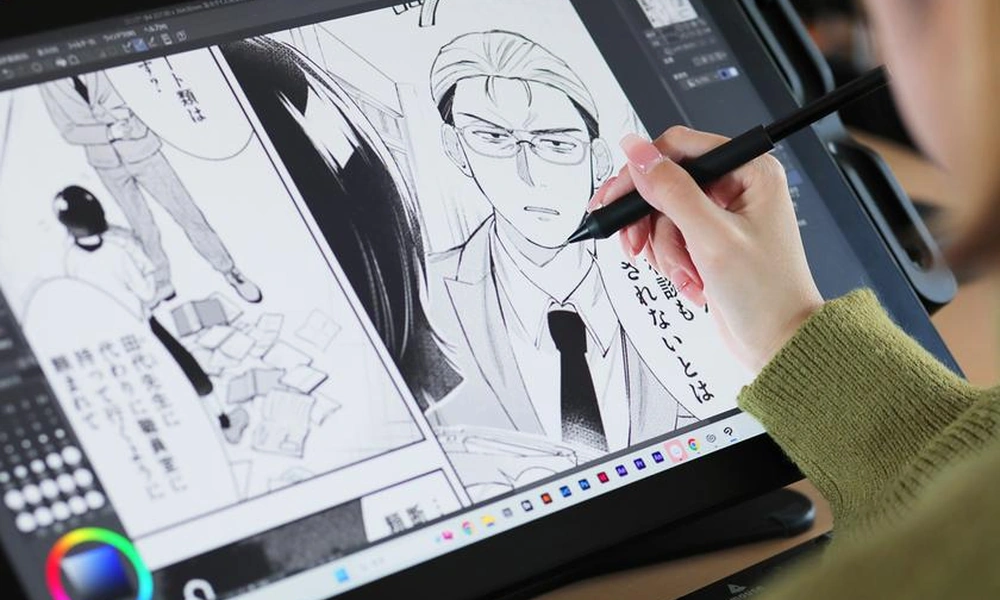
MediBang Paint is a free digital painting and comic creation program for supported desktop and mobile platforms. It is particularly useful for people who want to create manga, comic pages, and stylized character artwork.
Comic projects often involve more than drawing a character. You may need panels, speech bubbles, clean line art, and a consistent look across multiple pages. MediBang Paint includes tools intended to help with this kind of work.
What should you know before using it?
MediBang Paint offers a range of illustration tools, and some cloud features require an internet connection. Check the current terms for any premium materials or additional services before relying on them for a project.
Best for: Manga, comic pages, character illustrations, and stylized digital art.
Limitations: If your main goal is logo design or precise vector graphics, a program such as Inkscape is a better match. Cloud-based features may also depend on your connection and account setup.
5. Sketchbook: Best for Simple Sketching
Sometimes you don’t need a complicated collection of tools. You just want to open a blank canvas, sketch an idea, and work on the drawing without getting distracted by settings.
Sketchbook is known for its drawing-focused interface and range of sketching tools. It can suit beginners who want a straightforward place to practise lines, shapes, faces, and everyday drawing ideas.
Who should use Sketchbook?
It’s worth considering if you enjoy quick sketches or want a clean workspace for planning artwork before moving to a more advanced program.
Before downloading, check the version available for your device. Free access and pricing can differ between desktop and mobile editions, so don’t assume every version has the same terms.
Best for: Quick sketches, drawing practice, rough concepts, and simple illustrations.
Limitations: Its suitability depends on your device and the features included in your chosen version. Check the current pricing and export options first.
6. Adobe Fresco: Best for Touch-Based Drawing
Adobe Fresco focuses on drawing and painting with digital brushes. It can be a good option if you prefer working with a touchscreen and compatible stylus rather than relying entirely on a mouse.
Its brush-based workflow is useful for sketching, coloring, and building illustrations. Depending on your device and setup, it may offer a more natural drawing experience than traditional desktop software.
Is Adobe Fresco completely free?
Adobe offers a free version, but optional paid features and services may also be available. Review the current plan details before starting a project that depends on a particular tool or resource.
Best for: Touchscreen drawing, brush-based illustration, and digital painting on supported devices.
Limitations: Device compatibility matters, and some features may depend on your plan. If you want open-source desktop software without a subscription, Krita is a useful alternative.
7. FireAlpaca: Best for Lightweight Drawing
FireAlpaca is another option for people who want a relatively straightforward drawing program. It supports digital illustration and comic-related workflows, making it worth considering if you don’t need an especially complex setup.
For beginners, a simpler workspace can make it easier to focus on the basics: sketching, clean outlines, colors, and shading. You can build your skills without trying to understand dozens of advanced tools at once.
Best for: Beginner illustrations, line art, simple digital paintings, and comics.
Limitations: The interface and available features may not suit everyone, especially if you need an advanced workflow for large, detailed projects. Check the official download page and system requirements before installing it.
8. Kleki: Best for Drawing in a Browser
Don’t want to install software just to test digital drawing? Kleki is a browser-based drawing tool that lets you create simple artwork online.
This can be handy on a shared computer, at school, or when you want to sketch an idea quickly. Open the tool in a supported browser and start drawing without setting up a full desktop application.
When does a browser drawing tool make sense?
Kleki is useful for quick sketches, basic painting, and practising digital drawing. It can also help you decide whether you enjoy working with a mouse, touchscreen, or stylus before committing to a more advanced program.
Best for: Quick sketches, basic digital painting, and drawing without a traditional installation.
Limitations: A browser tool may not offer the same depth as a dedicated desktop program. Check its current export options and test whether they meet your needs before creating a large project.
How Do You Choose the Right Free Drawing Program?
The easiest way to narrow down your options is to start with the kind of artwork you want to make. You don’t need the program with the most features; you need one that makes your work easier.
| Your main goal | Software to consider |
|---|---|
| Digital painting and illustration | Krita |
| Logos and vector graphics | Inkscape |
| Photo editing and image composition | GIMP |
| Manga and comics | MediBang Paint |
| Simple sketching | Sketchbook |
| Touchscreen painting | Adobe Fresco |
| Lightweight digital drawing | FireAlpaca |
| Quick online sketches | Kleki |
Think about your device as well. A program that feels comfortable on a computer may not be the right fit for a phone or tablet. If you’re using a drawing tablet, check pressure sensitivity and driver compatibility. Pressure sensitivity lets a supported pen produce different line thicknesses or opacity depending on how firmly you press.
It’s also worth checking file formats before choosing. If you need to send editable artwork to someone else, make sure the software can save in a format that works for both of you. Planning a creative project around an outdoor trip? Samppy also has guides to camping hammocks, hiking hats, and the best ski resorts in Colorado to help you prepare for your next adventure.
What Should You Check Before Downloading Free Drawing Software?
Free software can be a great starting point, but take a minute to check a few details before installing anything.
- Pricing: Confirm whether the software is fully free or includes optional paid features.
- Device support: Make sure it runs on your operating system and hardware.
- Export options: Check whether you can save your work as PNG, JPEG, SVG, or another format you need.
- Learning resources: Tutorials and official documentation can make a new program much easier to learn.
- Commercial use: If you’re creating work for clients, review the software’s licence and any relevant asset licences.
- Download source: Prefer the official website to avoid misleading download buttons or unofficial installers.
Remember that software licensing and the rights to artwork are separate issues. A free drawing program doesn’t automatically permit you to use every brush pack, font, photograph, or template you download with it.
Frequently Asked Questions
What is the best free drawing software for beginners?
Krita is a good choice if you want to learn digital painting on a computer. If you only need simple sketches, Sketchbook or Kleki may be easier to approach. The right choice depends on your device and the kind of drawing you want to practise.
Which free drawing software is best for PC?
Krita, Inkscape, GIMP, MediBang Paint, and FireAlpaca are options to consider on supported desktop systems. Choose Krita for painting, Inkscape for vector graphics, or GIMP for image editing.
Is free drawing software good enough for professional work?
Yes, free programs can support serious creative projects. Krita, Inkscape, and GIMP offer useful tools for different workflows. Your results will depend on your skills, the features you need, and the requirements of the final project.
Which free drawing program is best for making logos?
Inkscape is a strong option because it creates vector graphics that can be resized without losing sharpness. This is useful for logos that need to appear on websites, business cards, and larger printed materials.
Can I use free drawing software for commercial projects?
Often, yes, but you should check the licence for the specific software and any extra assets you use. Brush packs, fonts, stock images, and templates can have separate terms, even when the drawing program itself is free.
Do I need a drawing tablet to use drawing software?
No. You can start with a mouse, trackpad, or touchscreen, depending on the program. A compatible drawing tablet and stylus can provide better control for detailed illustrations, but they’re not essential for learning the basics.
Disclaimer
Software features, prices, supported devices, and licence terms can change. This guide provides general information to help readers compare drawing tools; it isn’t a claim that every program has been independently tested on every device. Check each developer’s official website for the latest details before downloading or using software for commercial work.
Editorial Transparency
This Samppy guide compares software based on its stated purpose, publicly documented features, and suitability for common drawing tasks. The recommendations are intended as a starting point rather than a universal ranking. Your preferred option may differ depending on your device, experience, and creative needs.